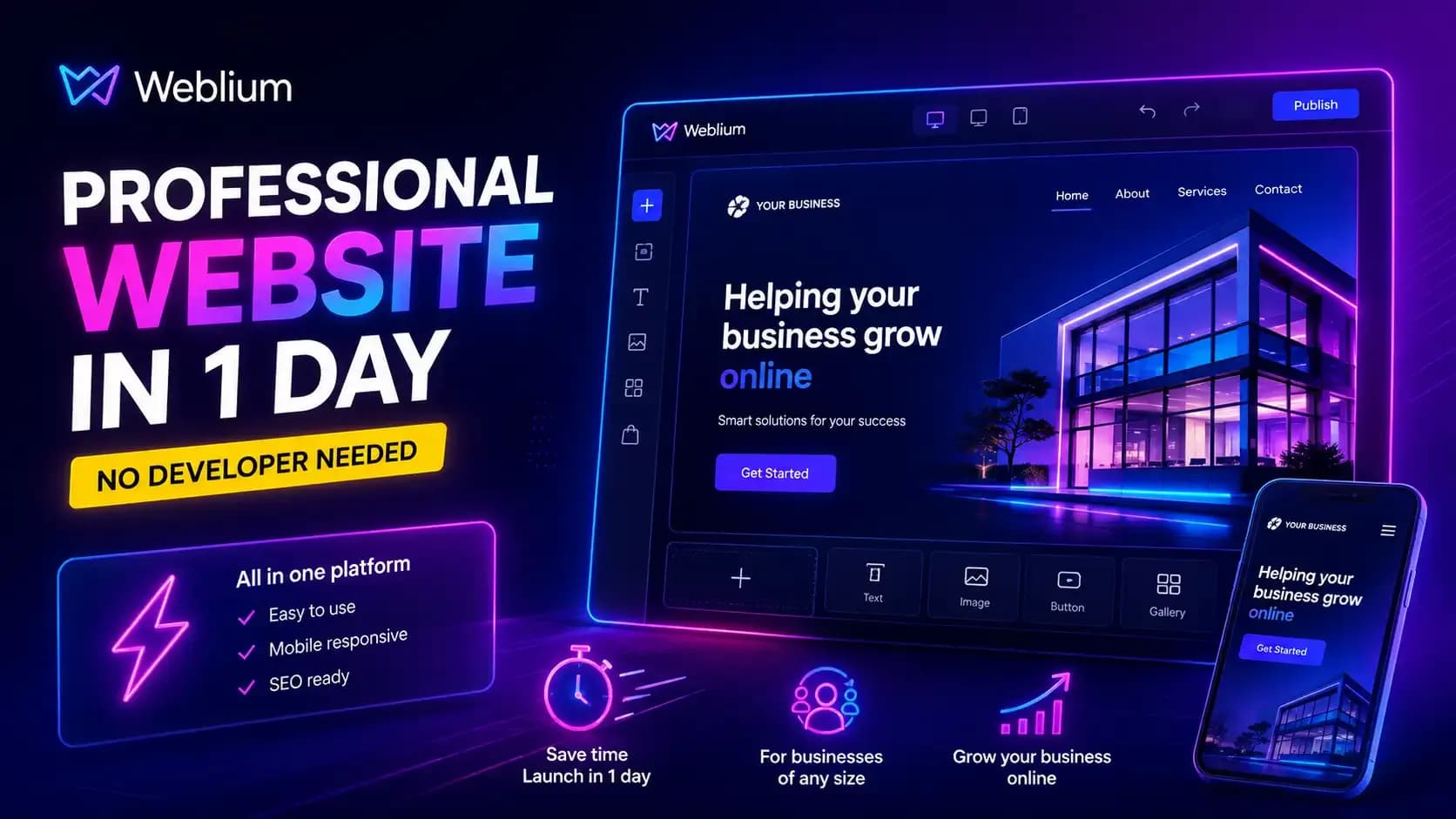
Weblium for Business: How to Build a Professional Website in 1 Day Without a Developer
Small business owners often push website creation to "someday" — it feels expensive, time-consuming, and impossible without a developer. In reality, things have changed. Modern website builders let you launch a full business-card site, landing page, or even a small online store in a single working day. One of the most popular tools for this is Weblium — a website builder that combines the simplicity of a Canva-like editor with enough flexibility for real business needs.
In this article, we'll walk through how to build a website on Weblium step by step, which features to prioritize first, and how to connect payments and a CRM so your site doesn't just sit online — it actually generates leads.
Why Weblium Works for Small Business
Before jumping into the instructions, it helps to understand why entrepreneurs — not just beginner designers — often choose this builder:
- No coding skills required — the entire editor is built on visual blocks you drag and drop.
- Ready-made templates for every niche — 300+ responsive templates for services, stores, events, portfolios.
- Multi-language support — the interface and templates work well for businesses targeting several markets at once.
- Built-in SEO tools — edit title tags, descriptions, and other metadata without touching any code.
- Fast launch — a basic site structure can realistically be assembled in a few hours, not weeks.
This doesn't mean Weblium replaces custom development in every case — complex web applications or non-standard business logic still need a custom-built site. But for a business-card site, an ad landing page, or a small store, it's one of the fastest and most affordable ways to get online.
Step-by-Step Guide: Building a Website on Weblium in 1 Day
Step 1. Sign Up and Choose Your Starting Point
Go to the Weblium website and sign up with your email or Google account. After registration, the platform offers two paths: start from a ready-made template, or generate a structure using the built-in AI assistant, which suggests blocks, placeholder copy, and a color scheme based on a short description of your business.
[Screenshot placeholder 1: starting screen for choosing how to build your site]
Step 2. Pick a Template for Your Niche
Filter the template catalog by category — "Services," "Online Store," "Restaurant," "Beauty & Health," and so on. Choose a template that's already close to the page structure you need — this means less time rearranging blocks later.
[Screenshot placeholder 2: template catalog with niche filters]
Step 3. Plan Your Page Structure
Decide how many pages your business actually needs: Home, About, Services/Catalog, Pricing, Contacts, Blog. For a business-card site, a single page with anchor sections is often enough — and it's even better for load speed and conversions.
Step 4. Fill in Real Content
Replace all placeholder text and images with your own. Focus on:
- headlines that include your niche's key search terms;
- real photos of your products, team, or office instead of stock images;
- a clear call to action on every screen — "Order Now," "Get a Consultation," "Request a Quote."
[Screenshot placeholder 3: block editor with text and image replacement]
Step 5. Set Up Lead Forms and Notifications
Connect your lead form to email, or straight to a messaging app for instant alerts — this way you catch new leads immediately instead of checking the CMS manually. Automating lead notifications this way significantly speeds up response times for small businesses.
Step 6. Basic SEO Setup
For every page, fill in:
- SEO title (under 60 characters, including your target keyword);
- meta description (under 160 characters);
- image alt tags;
- human-readable URLs instead of auto-generated ones.
[Screenshot placeholder 4: page SEO settings tab]
Step 7. Publish and Connect Your Domain
Connect your own domain (or purchase a new one directly in the dashboard), double-check mobile responsiveness, and publish the site. At this point, the base version of your website is live — the next step is setting up integrations.
Top 15 Weblium Features for Small Business
- Visual drag-and-drop editor — change blocks without code, with instant preview.
- AI design assistant — generates a site structure and placeholder copy based on your business description.
- 300+ responsive templates — tailored to specific niches, with automatic mobile versions.
- Built-in SEO toolkit — edit titles, descriptions, clean URLs, and schema markup without a developer.
- Flexible lead forms — collect exactly the information you need to process each inquiry.
- Pop-ups — for email capture, subscription discounts, or promo announcements.
- Full online store functionality — a catalog of thousands of products, variations (size, color), cart, and checkout.
- Online payment acceptance — payment providers integrated directly into the checkout page.
- Built-in CRM — track leads and deals without needing a third-party tool from day one.
- Multi-language websites — essential for businesses serving both local and international audiences.
- Analytics integrations — Google Analytics, Meta Pixel, and other tools for tracking conversions.
- Built-in blog/CMS section — publish SEO articles without a separate module.
- Booking/appointment calendar — handy for service businesses: salons, consultations, workshops.
- Custom code embedding — add custom scripts, chatbots, or feedback widgets.
- Fast hosting and SSL out of the box — your site runs on a secure protocol with zero extra setup.
Payment and CRM Integrations
Integrations deserve special attention — they're what turn a website from a "digital business card" into a real sales tool.
Payment Systems
Weblium supports connecting popular payment providers for both local and international markets, including Stripe, PayPal, Square, and Mollie, among others.
Setup happens right in your site dashboard: choose a payment provider, enter your company details (typically business name, category of goods/services, email, and bank details for payouts), and enable checkout payments directly on the order page. Customers don't fully leave your site during checkout — they're redirected to a secure payment page and returned once the transaction is complete.
CRM Systems
To manage leads, a business can use Weblium's built-in CRM or connect an external one. Popular CRM integrations let you:
- automatically store all form submissions in one place;
- see payment status without manual reconciliation;
- track customers and repeat inquiries;
- combine phone calls and email outreach in a single dashboard.
For businesses that want to automate their first line of communication, connecting instant messaging notifications for new leads is an effective addition — it lets your team respond within minutes instead of hours.
How Much Does Weblium Cost
The platform runs on a subscription model with several pricing tiers — from a basic plan built for a single business-card site, to expanded packages with multiple sites, collaborators, and priority support. Exact pricing is worth checking on the official website, since the pricing structure is updated periodically, but the general rule holds: higher-tier plans include more sites, free domains, and discounts on add-on services.
Pros and Limitations of Weblium
Pros:
- fast launch without a developer;
- intuitive interface, even for first-time users;
- built-in SEO, CRM, and payment tools in one place;
- strong support and multi-language capability.
Limitations:
- less design flexibility compared to custom development on Next.js or React;
- limits on deep custom logic and non-standard integrations;
- not suitable for complex web applications (user dashboards, complex business logic) — those require custom code.
Frequently Asked Questions (FAQ)
Can I build an online store on Weblium? Yes, the platform supports full e-commerce functionality: a product catalog, variations, cart, checkout, and payment integrations.
Do I need separate hosting for a Weblium website? No, hosting and an SSL certificate are already included in your subscription — there's nothing extra to buy.
Can I later move a Weblium site to custom code? The builder doesn't offer a direct export to clean code — if a business grows and needs custom logic, the site is typically rebuilt from scratch on the required stack.
What's better for small business — Weblium or custom development? If you need a simple business-card site, a landing page, or a small store on a tight timeline, Weblium is the faster and more affordable option. If you need advanced functionality, a unique design, or a web application with a user dashboard, custom development is the better route.
Conclusion
Weblium is a solid choice for small and medium businesses that want to get online quickly without a large development budget. The step-by-step approach — from choosing a template to connecting payments and a CRM — makes it possible to launch a working website in a single day. That said, keep in mind: the builder works best for standard use cases. If your business needs a unique design, complex logic, or non-standard integrations, custom development is worth considering.
Not sure which option fits your business — a builder or a custom website? The ABECT team offers a free consultation to help you choose the right solution for your goals and budget.